

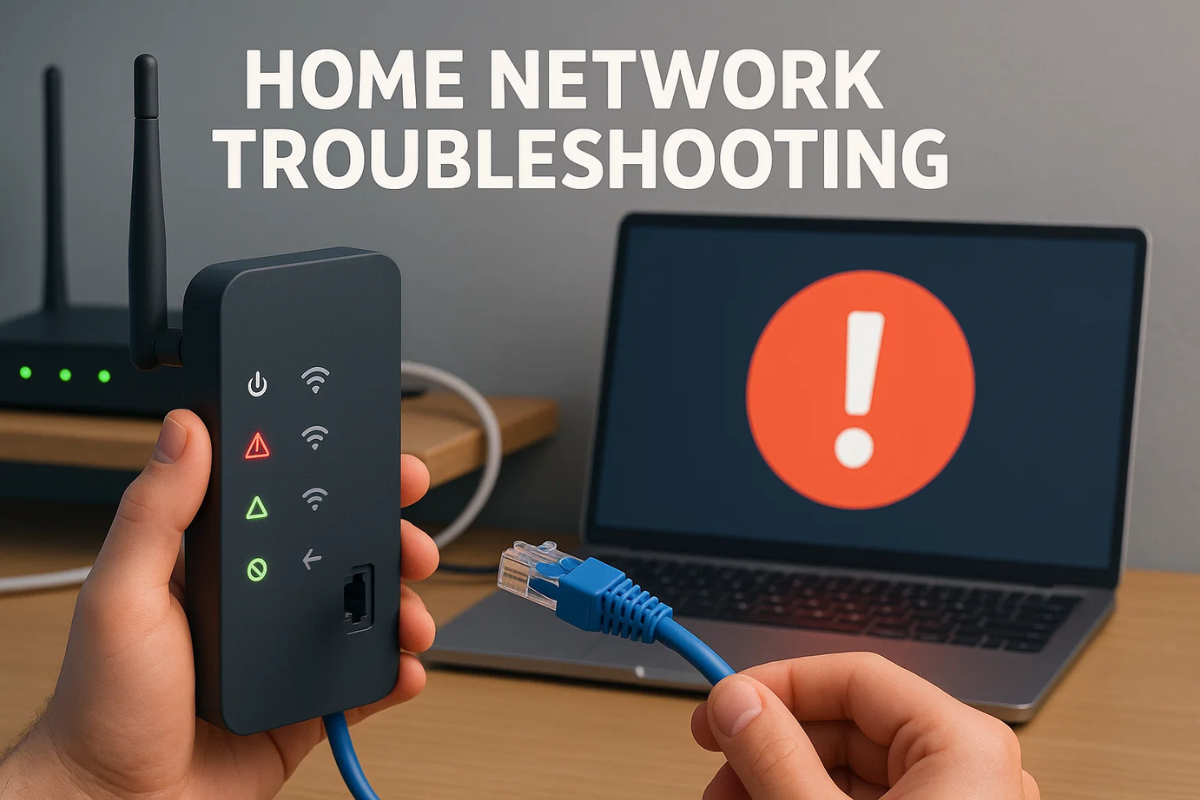
When the internet dies, most people start randomly rebooting stuff like it owes them money. This home network troubleshooting quick starter is a simple checklist that isolates the real problem fast. Your device, your Wi Fi, your router or your ISP line.
You will learn what to test first, what not to touch and the one “tiny” clue that tells you if the fix is local or upstream.
Network Troubleshooting for Beginners: Fix Your Internet Step-by-Step
https://www.youtube.com/watch?v=czXiP1mYtPE
Network Troubleshooting Checklist
- Define the blast radius (30 seconds)
- One device only? It is likely that device.
- All devices? It is likely the router, modem, or ISP.
- Check the obvious lights and cables (1 minute)
- Modem and router powered on.
- Ethernet cable from modem to router is fully seated.
- If the modem shows “offline” or “LOS,” that often points to the ISP side.
- Do a clean reboot in the right order (3 minutes)
- Unplug modem and router. Wait 60 seconds.
- Plug modem in first. Wait until it looks fully online.
- Plug router in next. Then reconnect devices.
- Test wired vs Wi-Fi (2 minutes)
- If you can, plug a laptop into the router with Ethernet.
- Wired works but Wi Fi is bad? Focus on Wi Fi settings, placement, or interference.
- Wired and Wi Fi both fail? Focus on modem, router WAN, or ISP.
- Fix “just one device” fast (2 minutes)
- Toggle Wi Fi off and on. Confirm airplane mode is off.
- “Forget” the network, reconnect, and re-enter the password.
- Restart the device. Yes, really.
- Quick DNS reality check (optional, 2 minutes)
- If apps say “connected” but websites will not load, DNS might be the issue.
- Try a different site, then try a different device. If both fail, reboot router again and check ISP status.
- Slow speeds checklist (3 minutes)
- Move closer to the router for a test.
- Switch to 5 GHz or 6 GHz if your router supports it.
- Pause big downloads, cloud backups, or game updates on other devices.
If this article helped, then bookmark our Networking & Security guides for next time. And if you have ever reused passwords, read The Dark Web Exposed because “mystery network issues” sometimes start with compromised accounts.
| Symptom | Fast test | Likely cause | Best next move |
| Only one device is broken | Other devices work fine | Device Wi Fi, saved password, driver glitch | Forget network, reconnect, restart |
| Wi Fi is bad, wired is fine | Ethernet works | Wi Fi range, interference, band choice | Move router, switch bands, reduce congestion |
| Everything is down | All devices fail | Router hung, modem offline, ISP issue | Reboot in order, check modem status, contact ISP |
| “Connected” but sites fail | Apps load weirdly | DNS hiccup, captive portal, ISP DNS | Reboot router, test another device/site |
If this checklist fixes your issue, great. Save it and move on with your life. If it doesn’t. Then you have still won because you now know where the problem lives which makes ISP support calls shorter and way less painful. That is the whole point of home network troubleshooting. Fewer guesses, faster proof.

Pingback: Network Operating System Explained: Windows Server vs Linux vs Cisco IOS - The Circuit Daily | Elite Tech Insights